
Timer Pet: your study timer on every tab
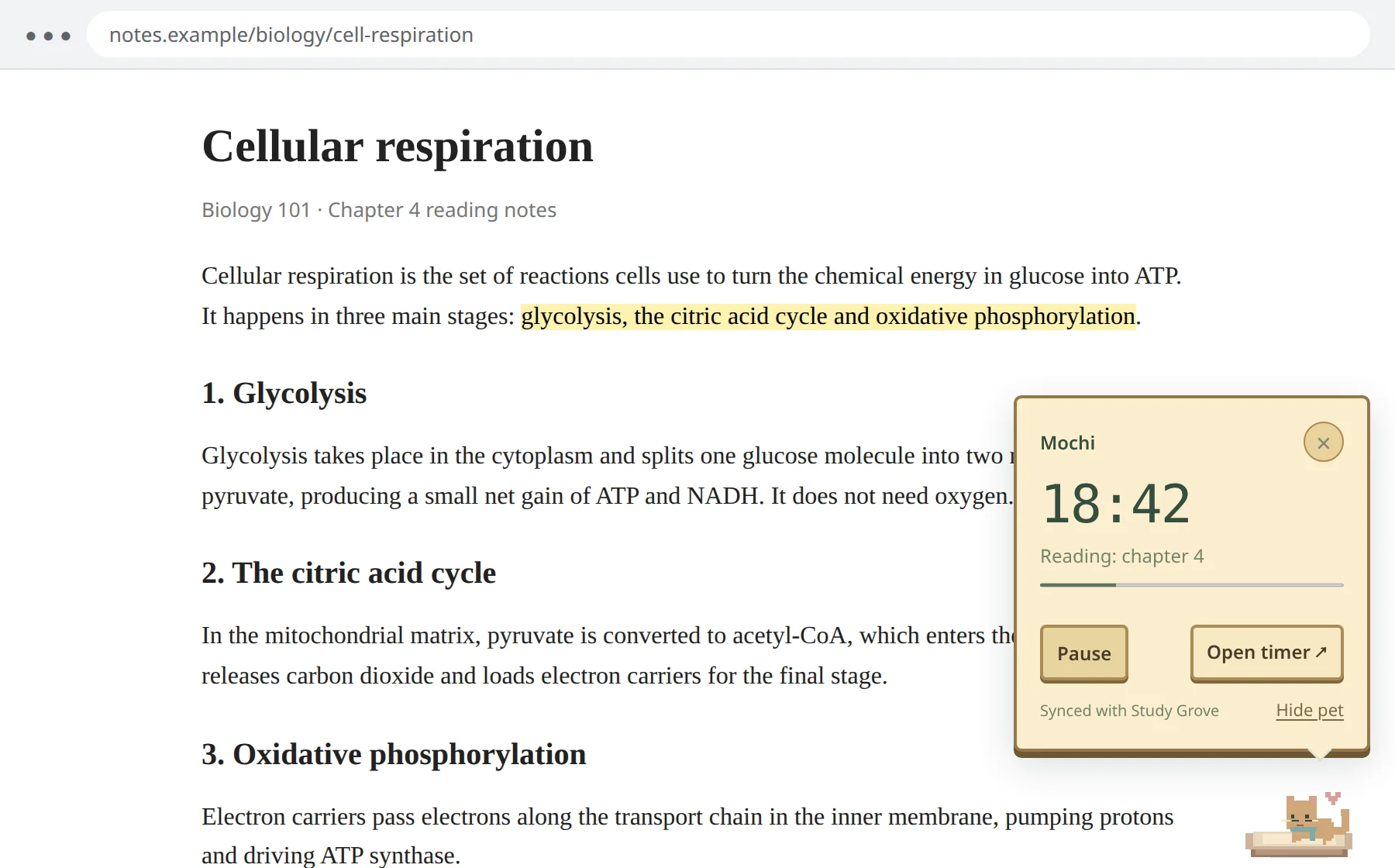
Study Grove Timer Pet is a free extension for Google Chrome. It puts a tiny pixel pet at the edge of the websites you study on, and it shows the same focus timer as your Study Grove game. Tap the pet to see how much of your session is left, pause it, or jump back to the game. Your game is always in charge of the time and the rewards; the pet simply keeps you company while you’re in another tab.
Version 0.4.2 · Updated
Not in the extension stores yet. Store listings are on the way. For now you add it to your browser yourself, which takes about two minutes. The steps are below. You need Chrome 120 or later, or another Chromium browser such as Edge, Brave or Opera, on a computer.
What it does
- Shows your focus timer on any normal website, so you don’t need to switch back to the game to check the time.
- Lets you start, pause, resume or finish a session from the toolbar, and those changes happen in your game.
- Puts your own game pet on the page, with its species, colours, markings and accessories, or a cozy cat if you prefer.
- Spends most of its time asleep in a little bed at the edge of the page, so it stays out of the way while you read. Tap it to wake it.
It doesn’t earn coins or XP by itself, and it can’t start counting time without the game. That’s on purpose: Study Grove only rewards minutes you actually focused, and one place keeping the time means one honest count.
How it works
There are three pieces, and the game tab sits at the centre of them.
- Your game tabgriiken.online/play
Runs the timer, settles coins and XP, and holds your save.
- Timer Pet extensionthe toolbar popup
Keeps a copy of the timer to show, and passes your buttons on to the game.
- Any other tabthe pet
Naps at the edge of the page and shows the timer card when you tap it.
When the game tab is closed
The pet can’t show a live timer without the game, so it doesn’t pretend to. The time changes to a dash and the pet says Reconnect game. Open Study Grove again and your session is right where you left it.
When your computer sleeps
Chrome sometimes pauses background tabs, or your laptop goes to sleep mid-session. If there’s a long gap, the game doesn’t guess. It asks you to review the time: choose Count study time if you were studying, or Skip gap & resume if you weren’t.
Install it in Chrome
Until the Timer Pet is in the Chrome Web Store, Chrome’s Developer mode lets you add it from a folder. Developer mode only allows extensions you load yourself; it doesn’t change anything else about Chrome.
- 1
Download and unzip
Download the Timer Pet zip file (version 0.4.2, about 735 KB) and unzip it. Keep the folder somewhere it can stay, like Documents, because Chrome loads the extension from it.
- 2
Open Chrome’s extensions page
Type
chrome://extensionsin the address bar and press Enter. Turn on Developer mode in the top-right corner. - 3
Load the folder
Click Load unpacked and choose the unzipped folder, the one that contains
manifest.json. Study Grove · Timer Pet appears in the list. - 4
Pin it
Click the puzzle-piece icon in Chrome’s toolbar and pin Study Grove · Timer Pet, so the pet’s icon is always one click away.
- 5
Open the game
Open Study Grove and keep that tab open while you study. If it was already open, reload it once so it can find the extension.
- 6
Let the pet out
Click the pet icon and choose Enable across tabs. Chrome asks whether the extension may run on websites; say yes and the pet appears on your open tabs. Prefer one page at a time? Choose Only here instead.
In the game, the study timer panel has a Use your pet timer in Chrome section that tells you whether the extension is connected. If the game isn’t open, the popup shows an Open Study Grove button instead of the timer.
Edge, Brave and Opera
These browsers are built on the same engine as Chrome, so the same download works. Open edge://extensions, brave://extensions or opera://extensions, turn on Developer mode, and choose Load unpacked as in step 3. We test in Chrome, so other browsers may show small differences.
Using it day to day
From the popup
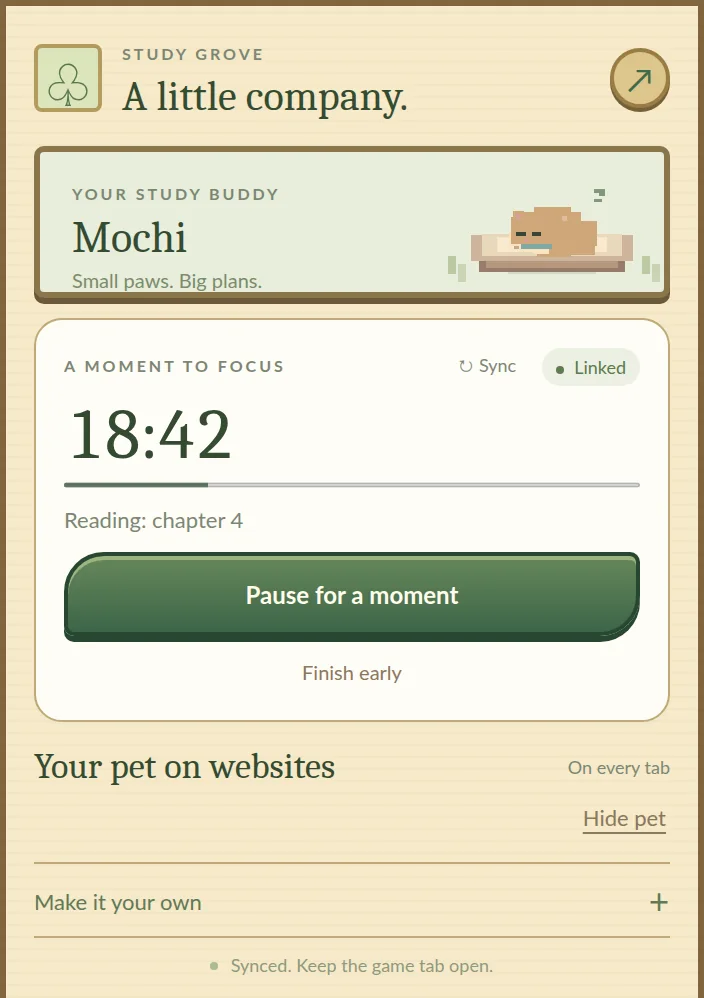
Type what you’re working on, pick 15, 25 or 50 minutes or any length up to 180, and press Let’s focus. The session starts in your game. While it runs you can pause, resume or finish early.
Make it your own
Under Make it your own, put the pet on the bottom or top edge of the page, and choose your game pet or a cozy cat, a tiny, small or comfy size, how long it waits before napping (10, 20 or 40 seconds) and Quiet motion for calmer animation. Your choices are remembered across tabs and restarts.
Tucking it away
Hide pet in the popup tucks the pet away everywhere. Hide pet on the timer card removes it from just that page.
What the pet is telling you
| What you see | What it means |
|---|---|
| Walking along the edge | It’s awake, usually because you just tapped it. During a session, a small chip above it shows the time left. |
| Curled up in its bed, then asleep with little Zs | It’s resting. After a tap, the pet wanders for 10, 20 or 40 seconds (you choose in the popup), then goes back to bed and falls asleep. |
| The timer card | You tapped the pet. It shows the time left, your task and progress, with Pause or Resume, Open timer and Hide pet. It closes after ten seconds unless you’re pointing at it. |
| “Done!” and a soft chime | Your session just finished in the game, and your progress is saved there. Quiet motion turns the chime off. |
| “Reconnect game” and a dash instead of a time | The game tab is closed or can’t be reached. Open Study Grove to reconnect. |
What it can see, and why
The Timer Pet asks Chrome for as little as it can. Here is every permission, in plain words.
| Permission | What it’s for |
|---|---|
| Storage | Remembers your pet settings and the latest timer to show. It stays in Chrome on your computer. |
| Alarms | Asks the open game for the latest timer every 30 seconds. |
| Scripting | Draws the pet on a page after you choose Only here or Enable across tabs. |
| Active tab | Lets Only here work on the single page you’re looking at. |
| griiken.online | Talks to your Study Grove game tab. Two local addresses used for development are included too. |
| All websites (optional) | Lets the pet follow you across tabs. Chrome asks you first, and you can say no or take it back in Chrome’s settings. |
The extension never receives your full save, notes, flashcards, study history, coin history, passwords or sign-in details. It doesn’t record what you type or read what’s on the pages you visit. On a page, it listens only for taps on the pet and its card, and for the Escape key or a click elsewhere to close the card. It checks tab addresses to find your game tab, and it keeps only that tab, not a history of where you’ve been. It has no ads and no analytics, and it doesn’t send anything to a server. Read the Study Grove privacy page for how the game itself handles your data.
Troubleshooting
The popup says Reconnect. What do I do?
Open Study Grove at griiken.online/play and keep the tab open. You can also click Reconnect in the popup, which opens the game for you. If you have just installed or updated the extension, reload the game tab once.
Why doesn’t the pet appear on some pages?
Chrome doesn’t let any extension run on its own pages, such as settings, the extensions page and the Chrome Web Store. On ordinary websites, check that you chose Enable across tabs or Only here, and reload tabs that were open before you installed.
Does the Timer Pet count study time on its own?
No. Your Study Grove game counts the time and gives the rewards. The extension shows the game’s timer and passes on your button presses. If the game tab closes, the pet shows a dash until you open the game again.
Does it work in Firefox, Safari or on my phone?
A Firefox version is ready and waiting for its store listing, because Firefox only keeps extensions installed from its add-on store. Safari isn’t supported. The Timer Pet is tested in Google Chrome 120 or later on a computer. Phone browsers generally don’t run extensions, but you can play Study Grove itself in any mobile browser.
How do I update it?
Extensions loaded from a folder don’t update by themselves. Download the new zip, replace the files in your Timer Pet folder, click Reload on the Timer Pet card at chrome://extensions, and then reload your game tab.
How do I remove it?
Click Remove on the Timer Pet card at chrome://extensions. That deletes the extension’s own settings. Your Study Grove progress is stored by the game, so it stays exactly as it was.